Monitor an Agent's Screen
Supervisors only
The Monitor Agent Screen function allows you to see an agent's screen in real-time. The agents you are allowed to monitor are those who belong to the agent groups that have been assigned to you by your storm administrator.
Procedure
- Click the
 button on the Toolbar to display the Monitor Agents Panel, and then select the agent's parent agent group or subgroup.
 - In the list of displayed agents, identify the agent who's screen you want to see, click their
 button and then select Screen Monitoring from the menu.
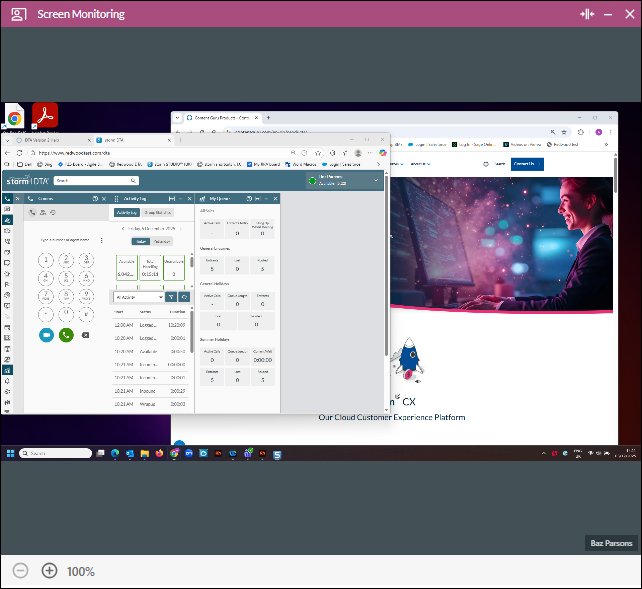
All screens being used by the agent are displayed in the Screen Monitoring panel, and the agent's name is displayed in the bottom right. You can zoom into the monitored screens by clicking the zoom buttons in the bottom left of the panel, or by using your mouse.
A red  icon in the agent's Windows taskbar indicates that their screen is currently being monitored or recorded.
- To end your monitoring session, close the Screen Monitoring panel.
See Also
Listen to a Live Agent Conversation